What You Need to Know
The PlayStation Portal transforms your handheld gaming experience by bringing your PS5 games anywhere in your home through Remote Play streaming. This dedicated device connects wirelessly to your PlayStation 5, letting you continue gaming sessions from bed, the kitchen, or any room with Wi-Fi coverage. Unlike smartphone apps or tablets, the Portal offers physical controls, an 8-inch LCD screen, and seamless PlayStation integration.
Setting up your PlayStation Portal requires a few key components working together: your PS5 console, a stable home network, and proper configuration on both devices. The process takes about 15 minutes once you understand each step. This guide walks through everything from initial unboxing to troubleshooting common connection issues.
Step 1: Check Your Network Requirements
Your home Wi-Fi network forms the backbone of Remote Play streaming. The PlayStation Portal requires a minimum internet speed of 5 Mbps for basic functionality, though 15 Mbps or higher delivers the best experience. Test your network speed using your PS5’s built-in connection test or any speed testing website.
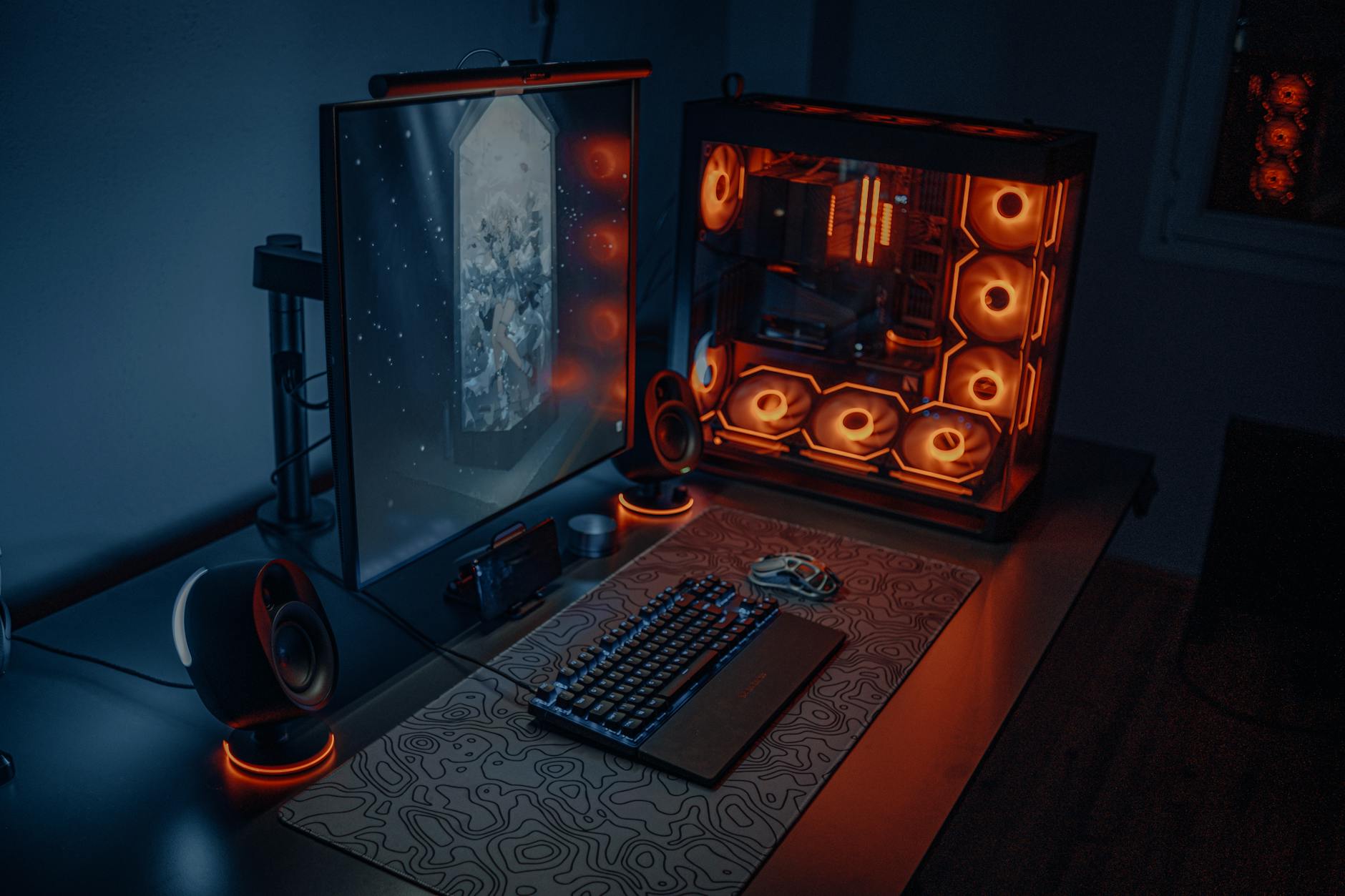
Position your PS5 console within reasonable range of your router, ideally with a wired ethernet connection rather than Wi-Fi. While the PS5 can use wireless connectivity, a direct cable connection provides more stable streaming performance. Check that your router supports 5GHz bands, as the 2.4GHz frequency often experiences more interference and slower speeds.
If your home uses mesh networking or Wi-Fi extenders, ensure both your PS5 and Portal can access the same network name. Some router configurations create separate networks that prevent device communication, which blocks Remote Play functionality entirely.
Step 2: Configure Your PS5 Console Settings
Power on your PlayStation 5 and navigate to the Settings menu from the home screen. Select “System” then “Remote Play” to access the streaming configuration options. Enable Remote Play by toggling the switch to the “On” position – this allows other devices to discover and connect to your console.
Within the Remote Play settings, enable “Enable Turning On PS5 from Network.” This feature lets your Portal wake up the console remotely when it’s in Rest Mode, eliminating the need to physically power on the PS5 each time. Configure Rest Mode settings by going to “System” > “Power Saving” > “Features Available in Rest Mode” and ensure “Stay Connected to the Internet” is enabled.
Create or verify your PlayStation Network account login credentials, as the Portal requires PSN authentication to establish the connection. Update your PS5 system software to the latest version through “System” > “System Software Update” to ensure compatibility with current Portal firmware.
Step 3: Initial PlayStation Portal Setup
Unbox your PlayStation Portal and locate the USB-C charging cable. Connect the device to power and hold the power button for three seconds to begin the startup sequence. The device displays Sony branding followed by setup instructions on the 8-inch screen.
Select your preferred language and region settings when prompted. The Portal automatically searches for available Wi-Fi networks within range. Choose your home network from the list and enter your Wi-Fi password using the on-screen keyboard. The device connects and downloads any available firmware updates automatically.
Sign into your PlayStation Network account using the same credentials linked to your PS5 console. This authentication step ensures the Portal can only connect to consoles associated with your PSN profile, maintaining account security. The device may prompt you to accept terms of service and privacy agreements before proceeding.
Step 4: Establish the Console Connection
With both devices configured, initiate the pairing process from your Portal’s home screen. Select “Connect to PS5” and wait for the device to scan your network for compatible consoles. Your PS5 should appear in the discovered devices list, typically displaying the console’s nickname or default name.
Select your PS5 from the available options and wait for the connection handshake to complete. The Portal displays a connection status screen showing network strength, latency, and streaming quality indicators. A successful connection launches your PS5’s home screen directly on the Portal display.
If your PS5 doesn’t appear in the device list, ensure both devices connect to the same Wi-Fi network and that Remote Play remains enabled on the console. Restart both devices if connection attempts fail, as temporary network conflicts sometimes prevent initial pairing.
Step 5: Optimize Streaming Quality Settings
Access streaming quality options through the Portal’s settings menu while connected to your PS5. The device offers several resolution and frame rate combinations depending on your network performance. Start with “Standard” quality settings and increase to “High” or “Very High” if your network supports the additional bandwidth requirements.
Adjust the streaming resolution between 720p and 1080p based on your preference for visual quality versus network stability. Higher resolutions require more bandwidth but provide sharper image quality on the Portal’s screen. Monitor the connection indicators during gameplay to identify the optimal settings for your setup.
Configure controller sensitivity and button mapping preferences through the Portal’s control settings. The device includes all standard DualSense features except haptic feedback and adaptive triggers, which don’t transmit through Remote Play streaming. Save your preferred settings profile for consistent performance across gaming sessions.
Step 6: Test Gaming Performance
Launch a variety of games to test streaming performance across different genres and technical requirements. Start with less demanding titles like puzzle games or turn-based strategy before testing action games that require precise timing and low latency response.
Pay attention to input lag during fast-paced sequences, as network delays can affect competitive gaming performance. Single-player adventure games typically work well with Remote Play, while online multiplayer shooters may feel less responsive due to the additional streaming delay on top of internet latency.
Cross-platform gaming capabilities continue expanding across console ecosystems, making remote play functionality increasingly valuable for accessing your game library from different devices and locations.
Troubleshooting Common Issues
Connection drops or poor streaming quality often result from network congestion or interference. Move closer to your Wi-Fi router or switch to a less crowded wireless channel if other household devices compete for bandwidth. Pause streaming services, downloads, or other network-intensive activities during Portal gaming sessions.
If games appear laggy or unresponsive, check your PS5’s performance mode settings. Some games default to graphics-focused modes that may not stream efficiently. Switch to performance modes that prioritize frame rate over visual effects for smoother Remote Play streaming.
Audio sync issues occasionally occur when network conditions fluctuate. Restart the Portal connection or adjust audio delay settings if dialogue doesn’t match character lip movements. Wired headphones connected to the Portal’s audio jack often provide better synchronization than wireless options.
Key Takeaways
The PlayStation Portal setup process requires attention to network configuration, console settings, and device pairing, but creates a seamless handheld gaming experience once properly configured. Strong Wi-Fi connectivity and up-to-date system software provide the foundation for optimal streaming performance.
Regular maintenance includes keeping both devices updated with the latest firmware and periodically testing network speeds to ensure consistent performance. The Portal works best with single-player games and becomes an excellent way to continue gaming sessions without occupying your main television.
Understanding these setup steps positions you to troubleshoot future connection issues and optimize your Remote Play experience based on your specific home network conditions and gaming preferences.
Frequently Asked Questions
What internet speed do I need for PlayStation Portal?
PlayStation Portal requires minimum 5 Mbps, though 15 Mbps or higher provides the best streaming experience.
Can I use PlayStation Portal away from home?
No, PlayStation Portal only works within your home Wi-Fi network where your PS5 console is connected.